Customer Spawner Blocks
A customer spawner block is the starting point for this mod. Where you place it is where your customers will spawn and what you place inside of it determines what your customers will want to buy from you.
Customers only spawn where they have enough vertical clearance and a 2x2 surface made from solid blocks, slabs, carpet, or stairs.
Open the Customer Spawner interface and change its Max setting to control the maximum number of customers for that individual spawner. Customers that are done buying and are leaving do not count toward this maximum.
Breaking a customer or supplier spawner that still contains items asks for confirmation. Cancel or press Escape to keep the configured spawner in place.
During timed shifts, the customer maximum starts low, ramps up to the spawner’s configured maximum, and ramps down over the final portion of the shift. The longer Day and Night Shifts ramp up more gradually than the shorter meal shifts.
Crafting Customer Spawner Blocks
You can craft a customer spawner block from a bed surrounded by 8 emeralds.
Spawning Modes
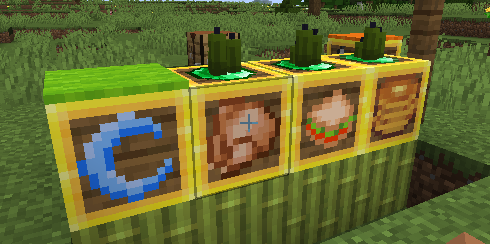
The customer spawning modes are mostly around time or shifts, do you configure the spawning mode with a Clock. Hold a Clock and right-click the customer spawner block to cycle through the spawning modes. Each spawning mode change will show a message with the change and change the block texture.
 Continuous / Default - The default mode will try to continuously keep 4 customers spawned.
 Day Shift - This mode will keep spawning customers, but only when it’s daytime from
5am - 7pm.
Day Shift - This mode will keep spawning customers, but only when it’s daytime from
5am - 7pm. Night Shift - This mode will keep spawning customers, but only when it’s nighttime from
7pm to 5am.
Night Shift - This mode will keep spawning customers, but only when it’s nighttime from
7pm to 5am. Breakfast Shift - This mode will keep spawning customers from 5:30am - 10:30am -
A little over 4 minutes.
Breakfast Shift - This mode will keep spawning customers from 5:30am - 10:30am -
A little over 4 minutes. Lunch Shift - This mode will keep spawning customers from 11:30am - 3:30pm -
Just under 3 1/2 minutes.
Lunch Shift - This mode will keep spawning customers from 11:30am - 3:30pm -
Just under 3 1/2 minutes. Dinner Shift - This mode will keep spawning customers from 4:30pm - 9:00pm -
Just under 4 minutes.
Dinner Shift - This mode will keep spawning customers from 4:30pm - 9:00pm -
Just under 4 minutes. Manual - This mode only spawns manually with a redstone pulse.
For the time restricted shift modes, the players within 64 blocks of the spawner will get shift messages, progress bars, and a results screen showing the final score, customer totals, total items crafted and served, and each participating player’s crafted and served item counts. The star beside a player is their served item count, while the spoon is their crafted item count. The progress bar shows every item currently requested, grouped by customer with yellow for normal customers, red for impatient customers, and green for casual customers.
Redstone and Customer Spawner
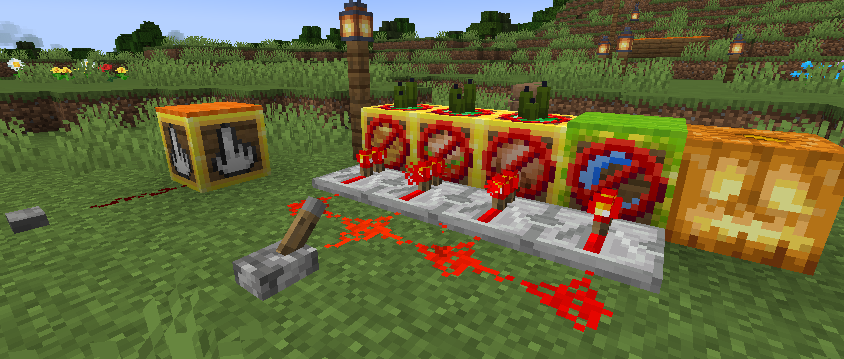
Similar to a hopper, if the Customer Spawner block is in any mode other than Manual and is receiving power, it will turn off spawning. This will allow you to turn off getting new customers when you don’t want to deal with them or if you want to use redstone to control when the shifts are on.
If a Customer Spawner is in Manual mode, a redstone pulse like with a button will spawn a customer. This will let you completely customize the spawning with your redstone contraption.
Controlling Items For Purchase
To control the items the customers can purchase the customer spawner block also acts like a container like a chest. The items or stacks of items you put in the spawner are what the customers can randomly decide to purchase.
The size of the stack is the limit to how many of that item a customer can ask to buy. For example if you have put a single apple in the customer spawner the customer will only ask to buy a single apple. However, if you put a stack of 5 apples in the customer spawner, the customer will decide to randomly buy 1 to 5 apples.
The separate 6 rows in the spawner container are used to define how many different items a customer can decide to buy and what each of those items can be. Each of the 6 container rows is a “slot” for a customer to decide to buy from. The first 8 columns on each row define the items a customer can ask to buy from that row. A customer will only ask for one item per slot, and it will randomly decide how many slots to buy from from 1 to the number of rows you have items in.
The 9th column is the Cost column for its row. The item and count in that slot are the price for the full stack configured in the selected sell slot. If a customer randomly asks for fewer items, the payment is reduced by the same sell-item-to-cost ratio and rounded down, with a minimum payment of one cost item. For example, if 5 apples cost 2 emeralds, a customer asking for 3 apples pays 1 emerald.
The maximum number of customers is not controlled by an inventory item. Use the Max setting in the Customer Spawner interface to set a value from 1 through 99 for that spawner.
Examples:
- Row 1 contains just a single apple - Customer will always ask for a single apple and pay a single emerald
- Row 1 contains a stack of 5 apples with a single emerald in its Cost slot - Customer will ask for 1 to 5 apples and pay one emerald.
- Row 1 contains a stack of 5 apples and a stack of 5 carrots - Customer will always decide to buy either apples or carrots and buy from 1 to 5 of them. The Cost slot sets the full-stack price for whichever item is chosen.
- Row 1 contains a stack of 3 chocolate chip cookies and a single pumpkin pie in its first 8 columns, with a stack of 2 emeralds in its 9th-column Cost slot - Customer will always decide to buy chocolate chip cookies or a pumpkin pie. If it decides to buy all 3 chocolate chip cookies it pays 2 emeralds; smaller cookie offers are scaled down to a minimum of 1 emerald. If it decides to buy the pumpkin pie it pays 2 emeralds.
- Row 1 contains a single apple. Row 2 contains a single pumpkin pie in its first 8 columns and a stack of 2 emeralds in its Cost slot - Customer will decide to buy from 1 to 2 items. If it decides to only buy 1, it will randomly pick which row to buy from. If it decides to buy 2, it will buy one item from each row.
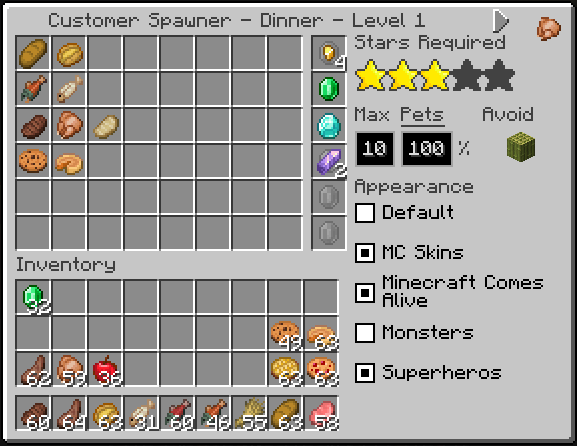
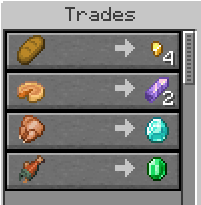
The Customer Spawner UI is also where you can chnge the spawner mode, set the max customers, and enable different customer appearances.