Villager Customers
The Customer Spawner will spawn Customer Villagers that are just normal villagers with custom AI and a custom profession. The Customer profession give them a unique skin and hat so you can tell they are customers. There are 3 types of customers:
- Normal - ~50% of spawned - Will give up at the configured max seconds.
- Impatient - ~ 20% of spawned - Will give up at half of the configured seconds.
- Casual - ~30% of spawned - Will never give up.
Each wears a different hat:
| Normal | Impatient | Casual |
|---|---|---|
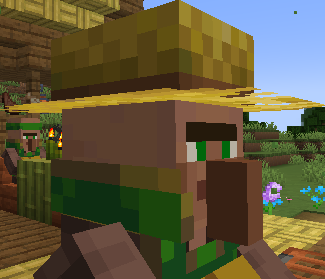 |
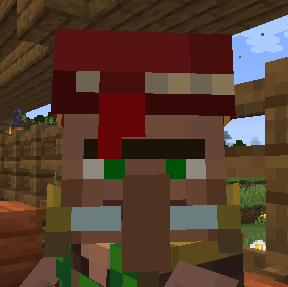 |
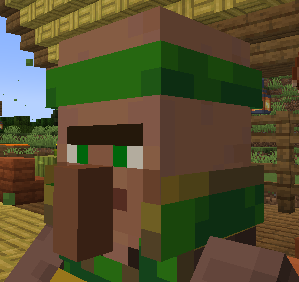 |
If you want your customers to have names, think about using the Villager Names mod.
Picking Items to Buy
The first thing a customer will do it look at it’s spawner to pick what items it wants to buy. See Controlling Items For Purchase.
Going to the Counter or Table
Once it has picked items to buy, it needs to find where to buy them. See Counter or Table-Top Blocks. Once the customer has found all the matching blocks, it will shuffle the list and then sort it ascending by the number of customers within 2 blocks of it. It will then pick the first one which should be a random block with the fewest number of other customers near it. This should give a nice pattern of filling our a counter or restaurant full of tables. Customers prioritize available stairs and seat-like blocks near counters and will sit while waiting to be served.
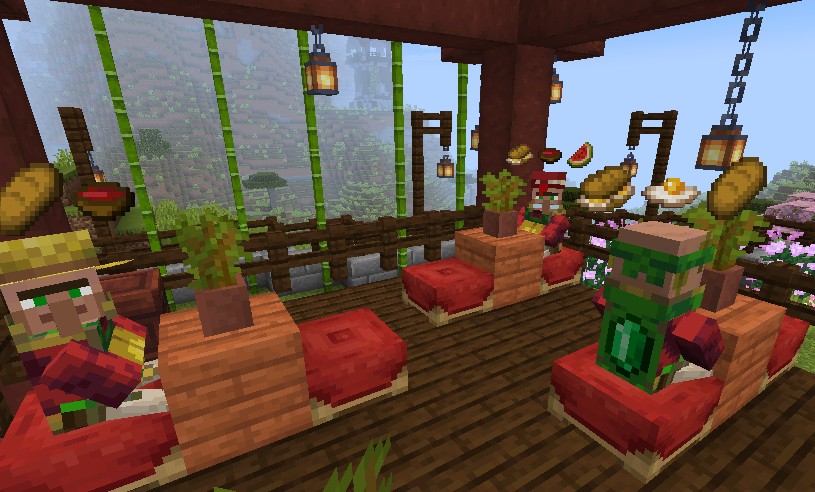
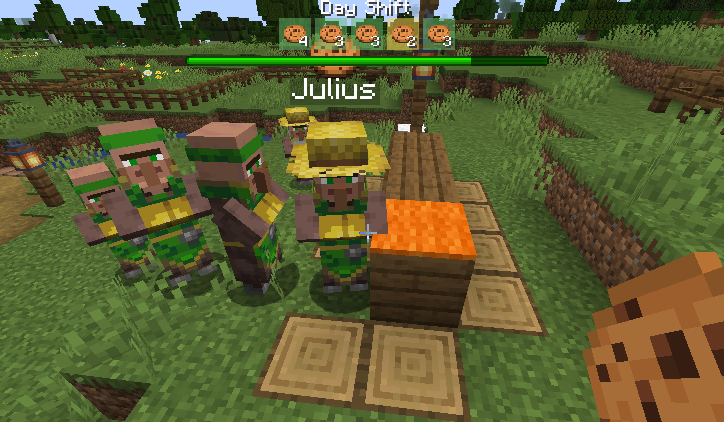
If there are more customers than there are counters, the customers will line up and wait their turn:
Serving and Selling to the Customer
You will serve the customer what they want or sell them what they want to buy just like any other villager trader. Right click on them to open up the trade and sell them one of the items. After being sold one of the items they want, that item will be removed from the trades.
Quick selling can be enabled with the enableQuickSell configuration option. When enabled,
right-clicking a customer while holding enough of a wanted item in your main hand immediately
completes one matching sale instead of opening the trading screen.
Thank You and Goodbye
Once the customer’s trade list is empty they will say thank you and goodbye to you in chat and walk back to the spawner that created them. Once they reach the spawner they will pick a random block to walk to 32 blocks away that has 2 air blocks above it and that they can actually path to. They will then walk to this block and once they get there despawn.
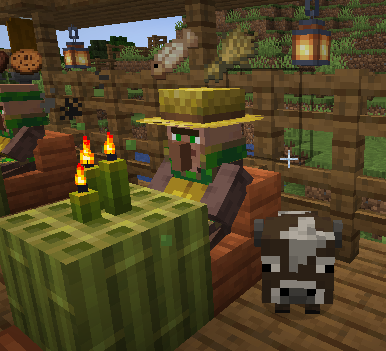
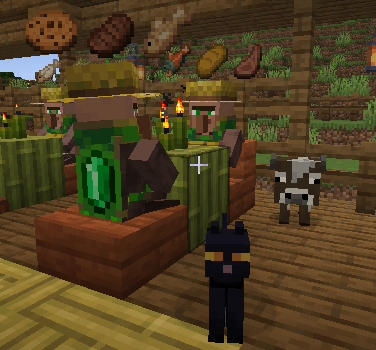
Customer Pets
Customer Spawners can give some customers a small pet that follows them around while they are visiting. Pets are chosen from animal entity types that accept at least one registered item as food. Customers with pets get one extra trade for their pet’s food. That extra trade asks for 1 of the pet food item. In manual-cost mode it uses the item in the upper-right slot of the Pets panel as payment; leave that slot empty to pay one emerald. In automatic-cost mode, the payment is calculated from the selected pet food and then passed through the configured currency conversions. The manual pet payment slot is disabled, and an existing item in it is dropped on top of the spawner when automatic costs are enabled.
Pets can even be additional animals from mods like Animal Garden:
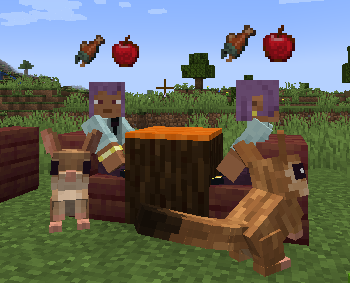
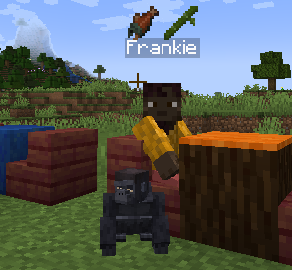
Pets disappear when their customer leaves, dies, or is no longer tracked by the spawner. When a player gives the customer the pet’s food, the pet shows heart particles.
Open the Customer Spawner interface and use the Pets percentage setting to control
how often spawned customers have pets. The value is set per spawner level. 0% means
customers from that level never have pets, and 100% means every customer from that
level tries to have a pet.
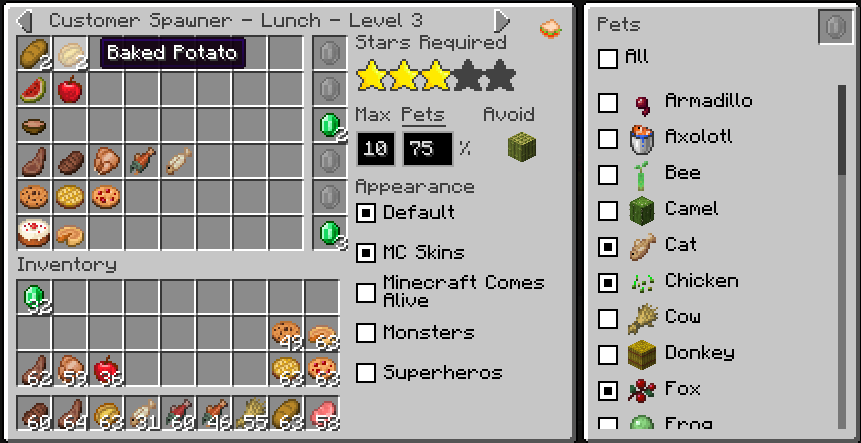
Click the underlined Pets label in the Customer Spawner interface to open the pet
type list for the selected level. Each discovered pet type has a checkbox. By default,
all discovered pet types are enabled for each level. Turning off a pet type prevents
that level from choosing it, and turning off every pet type means customers from that
level will not spawn pets even when the Pets percentage is above 0%.
The All checkbox selects or clears every discovered pet type for the level. Click a
pet’s food icon to cycle through every item that pet accepts as food. The selected food
is saved for that level and becomes the customer’s extra pet-food trade.
Server owners can prevent specific animals from being used as customer pets with a normal
Minecraft data pack. Create the following file inside a data pack placed in the world’s
datapacks folder:
your-data-pack/
├── pack.mcmeta
└── data/
    └── customers/
        └── tags/
            └── entity_type/
                └── can_not_be_pet.json
For example, this can_not_be_pet.json prevents cats and wolves from being selected as
customer pets:
{
  "values": [
    "minecraft:cat",
    "minecraft:wolf"
  ]
}